
How can we help?
Get help, book a session or order what your pharmacy needs.
Get help
Speak to our team or connect for remote assistance.
 WhatsApp supportTap to chat or scan the codeOpen
 AnyDesk supportGet help on your pharmacy PCView instructions
Write to support
Tell us what went wrong and how to reach you. Include the steps that led to the issue and any error message.
This form prepares a message in your email app. You must press Send there to deliver it to support@eposrx.com. If you don’t have an email app set up, call us or use WhatsApp instead.
AnyDesk download and connection instructions
AnyDesk remote support.
Contact the EposRx team before starting a remote-support session.
Download our AnyDesk support software on the Windows pharmacy PC you need help with. Our team will guide you through connecting. If you’re on your phone, open this page on the pharmacy PC to download it.
Windows download · 8.2 MB. Only approve a connection with the EposRx team you have contacted.
- 01 /
Contact EposRx
Call 0121 270 7770 or email support@eposrx.com with your pharmacy name and the issue.
- 02 /
Follow our instructions
Download and open the support software on your Windows pharmacy PC when our team asks you to. Share your AnyDesk address with our team and approve the arranged session.
- 03 /
Stay in control
Close sensitive information before sharing your screen, stay present and end the session when support is finished.
Please don’t send patient records, prescription or health information, passwords, PINs or payment-card details. Check screenshots before sharing them.
Common questions
A few useful checks and answers before you get in touch.
Quick answers
My cash drawer isn’t opening. What should I check?
Check that your receipt printer has paper, is powered on and can feed paper. Make sure the printer, PC and cash drawer cables are securely connected. If the problem continues, contact support with the printer model and any error message.
What should I send with a support request?
Please include the pharmacy name, how to contact you, the steps that led to the problem and the exact error message. Do not include patient, prescription, health or payment-card data.
Can I arrange more training?
Yes. Use Book training in Training & setup below to choose a session, or contact us to discuss the areas you and your team would like to cover.
How can I export my sales data?
Merchants can export sales data from EposRx. If you need help finding the relevant export or report, contact our team and tell us which period and information you need.
Who should I contact about my subscription?
Email support@eposrx.com for help with your EposRx subscription, billing or cancellation. For payment-processing charges, contact your payment provider using the details in your payment-services agreement.
Training & setup
Choose a session for you and your pharmacy team.
 Book trainingChoose a session for your teamOpen
 Book installationArrange your pharmacy setupOpen
 Book a demoSee EposRx in actionOpen
Appointments open our Microsoft Bookings calendars.
Orders & supplies
Hardware, software and everyday supplies, all in one place.
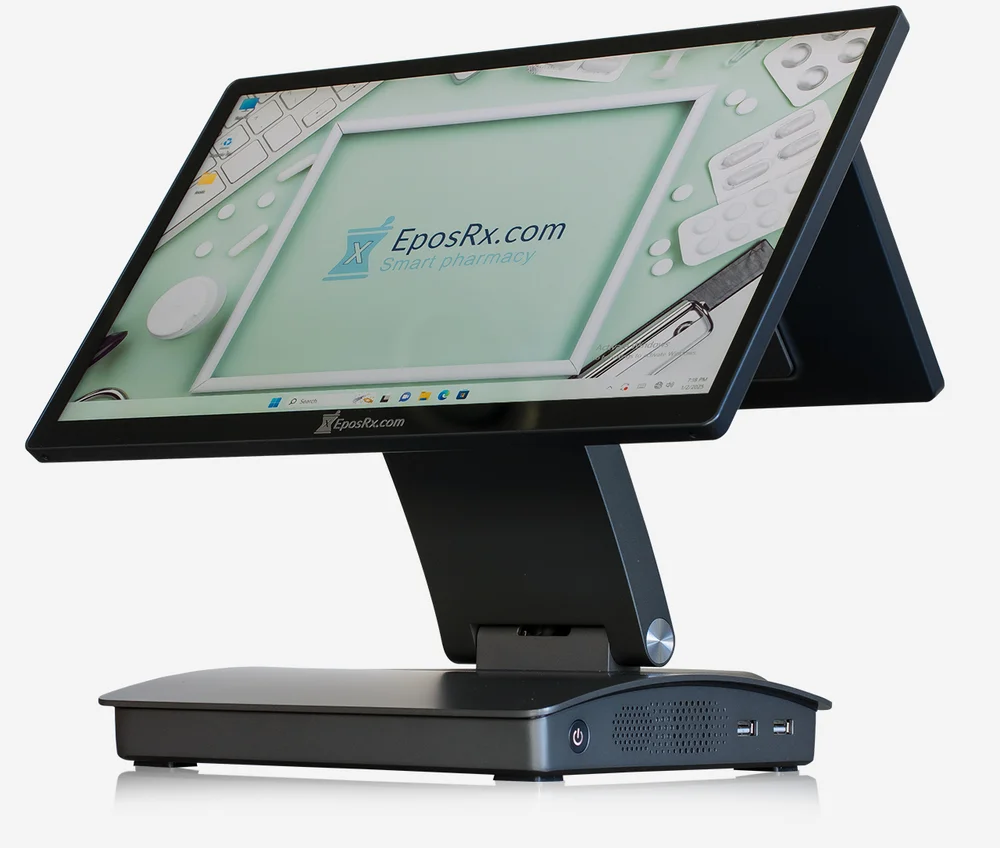 EposRx order formOrder hardware and softwareOpenOrder FadeguardRestock your thermal paperOpenOrder a scannerSee scanner ordering optionsOpen
Order forms open Microsoft Forms. Scanner orders open the InnovateRX website.
Billing enquiries
Questions about invoices or payments? Contact Nic.
Billing enquiries
For invoices and billing, email Nic.